In this post, I will guide to you how to use thesaurus in ms word? In your document have many words which is same word over and over again. You want to change it? But if you don’t know what to replace with, then surprisingly. Word has a tool that can help you with this. This little-known feature of Word, will help you find synonyms for the word you are using, from that the editing process will get much easier, more interesting, and also won’t give you a headache of thinking about which word to use.
And with that let’s get started.
How to use thesaurus in ms word?
You can access the thesaurus and find or replace synonyms in the fastest way as follows:
Select the word to find synonyms, right-click, select the synonyms item and you will see a list of many synonyms for the selected word.
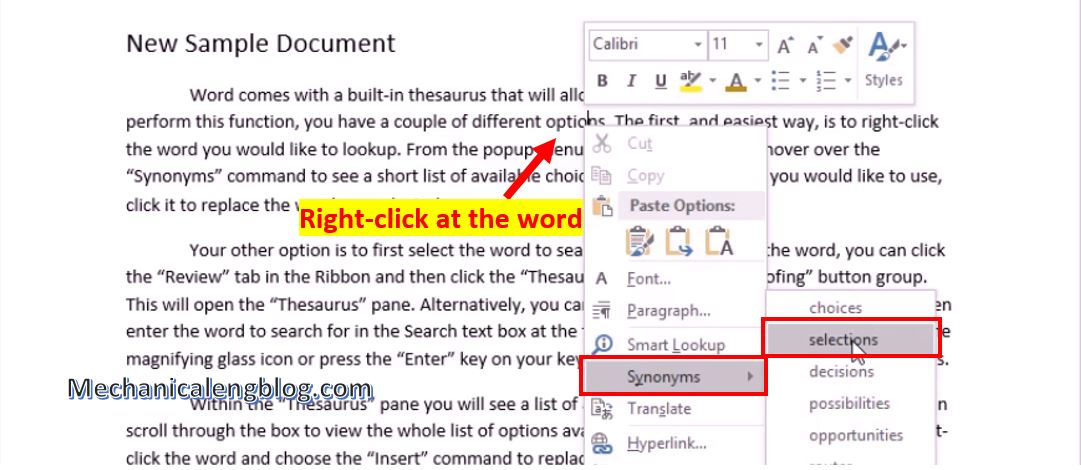
To replace, simply click on the word you want to replace.
Step 1: To open the thesaurus search feature on Word, press Shift + F7 and then type the word to be searched. Or select the word you want to find synonyms for, then click the Review tab on the toolbar, select Thesaurus to find synonyms in Word.
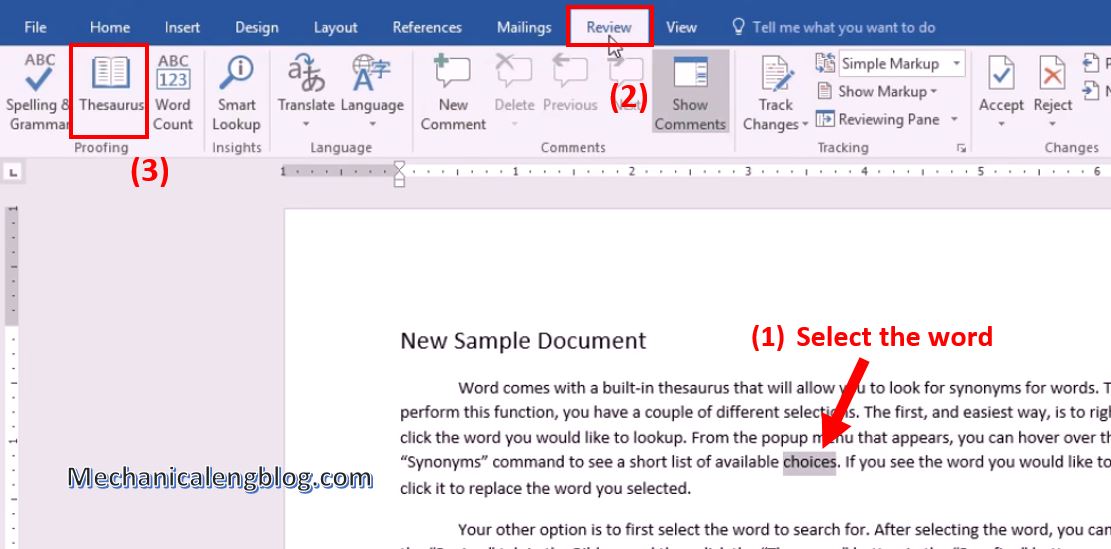
Step 2: A toolbox appears on the right side of the interface showing the synonyms results for the word you have chosen. Or if you open Thesaurus first, simply enter the word in the search box, the results will be shown right away.
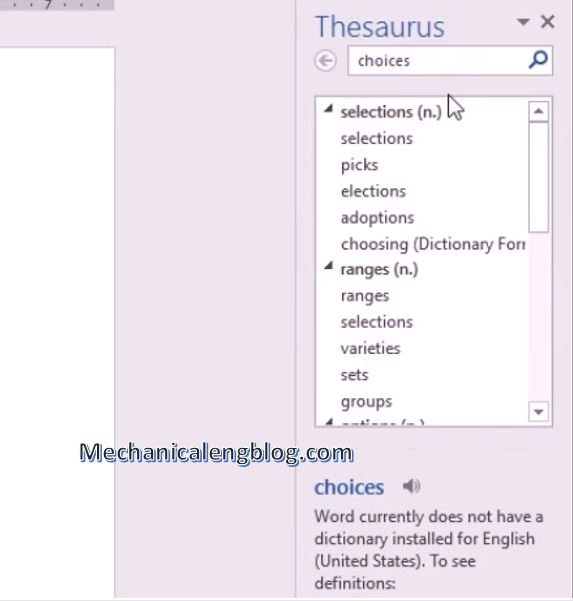
Immediately below the Thesaurus section, you will see the synonyms that Word finds.
Note: Depending on the word that the user enters, the word synonyms given by Word will stick to the content or not.
Step 3: To replace any word, click on the word in the list and then click Insert.

Besides, it can use Ctrl + F search mode to find replacement words along with how to find synonyms on Word. For each word, replace only 1 time for each search click.
CONCLUSION
In general, the usage of the synonym search feature on Word is extremely simple. You just need to select the synonyms that Word suggests. Currently, the synonyms feature has only been available for English. If you’re looking for synonyms in other languages, the result will not show or incorrect.
So that is all for today’s post. I’ll see you in some more interesting articles. Hope you will find this useful and don’t forget to visit our blog often. Thank you and good luck!
-hhchi

Leave a Reply