• Skip to main content
  • Skip to secondary menu
  • Skip to primary sidebar

Mechanicaleng blog

siemens nx tutorial & injection molding technology

  • Plastic molding
  • Siemens nx
    • nx modeling
    • nx drafting
    • nx sketching
    • nx assembly
  • Mechanical basic
    • mechanical standard
    • Mechanism video
  • microsoft office
    • microsoft word
    • powerpoint
    • excel tips
  • About me
  • CONTACT ME
Home » Siemens nx » nx modeling » How to create a cylinder in nx

How to create a cylinder in nx

December 16, 2021 by mechanicaleng blog Leave a Comment

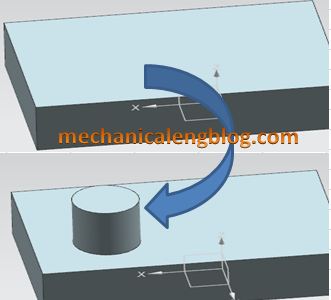
In the Siemens nx, cylinder command use to create a cylinder by defining axis location and dimensions. There are two methods to create a cylinder by cylinder command.

Where do I find it?

From the menu (top border bar): insert -> Design feature -> cylinder.
From the toolbar: Feature -> Design Feature Drop-down ->cylinder.

You are reading a guide how to use Block command in Siemens NX. Click here to read all design feature in Simens NX.

How to create a cylinder in nx?

1. Create a cylinder by an axis, a diameter, and a height.

+ From the menu (top border bar): insert -> Design feature -> cylinder.

+ In the cylinder dialog, type group, select Axis, Diameter, and Height option.

+ Axis group is active, click the select vector and select the vector in window graphics.And then select specify point.

+ Set the value of diameter and height in the dimensions group.

+ Click OK or apply to finish this command.

Create a cylinder by an axis, a diameter, and a height

2. Create a cylinder by an arc and a height.

+ From the menu (top border bar): insert -> Design feature -> cylinder.

+ In the cylinder dialog, type group, select Arc and Height option.

+ In the graphics window select the arc curve.

+ Set the value of  height dimension in the dimensions group.

+ Click OK or apply to finish this command.
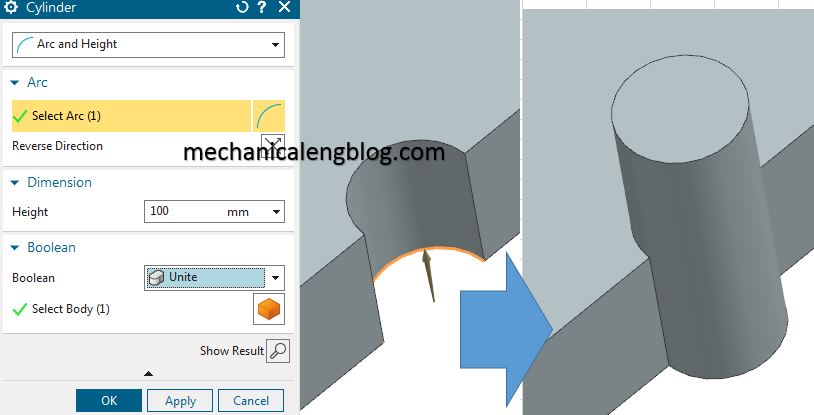
Create a cylinder by an arc and a height

Note:

+ When create a cylinder, you can change the direction axis of cylinder by click on reverse Direction.

+ In the Boolean group, you can select these options below: none, unite, subtract, intersect.


Related posts:

Create a block by two points and height3 ways to create a block in NX siemens nx create a bosssiemens nx modeling create a boss create feature vith siemens nx revolve commandsiemens nx revolve command siemens nx modeling create an embossingSiemens nx modeling create an embossing

Filed Under: nx modeling Tagged With: design feature

Reader Interactions

Leave a Reply Cancel reply

Your email address will not be published. Required fields are marked *

Primary Sidebar

Recent Posts

  • 10 things to succeed in mechanical engineering
  • what is tapered roller bearings structure
  • What is a flange connection
  • What is a Stainless Steel Flexible Joint
  • Gearbox – What You Need To Know
  • Gearbox Lubrication | 2 types lubricant
  • stainless steel | 4 types and identify
  • Plastic milling – simple but not simple
  • what is spur gear | introduction
  • Mechanical engineering skills from training process

Copyright © 2026 · Magazine Pro on Genesis Framework · WordPress · Log in