If you feel that the image is not vivid enough to describe the content you want to convey, but the video is afraid that it will weigh the file a lot, so why not try to insert the gif into the PowerPoint presentation slide? Still ensuring the animation is not cumbersome like when inserting a video. And to be able to do this, today I would like to bring you an article on how to insert gif in powerpoint .
Let’s get to work right away.
How to insert gif in powerpoint?
Step 1: To insert something you must go to tab Insert, then select Picture.

Step 2: Insert the gif from your PC or browse for it online.
When inserting online gif, make sure to enter “gif” in the search box to search for gif results and discard regular picture results.

Step 3: Select a gif and click Insert. Wait for PowerPoint to download the gif then you will see it being inserted into your slide. You can resize or move to anywhere you want on the screen.
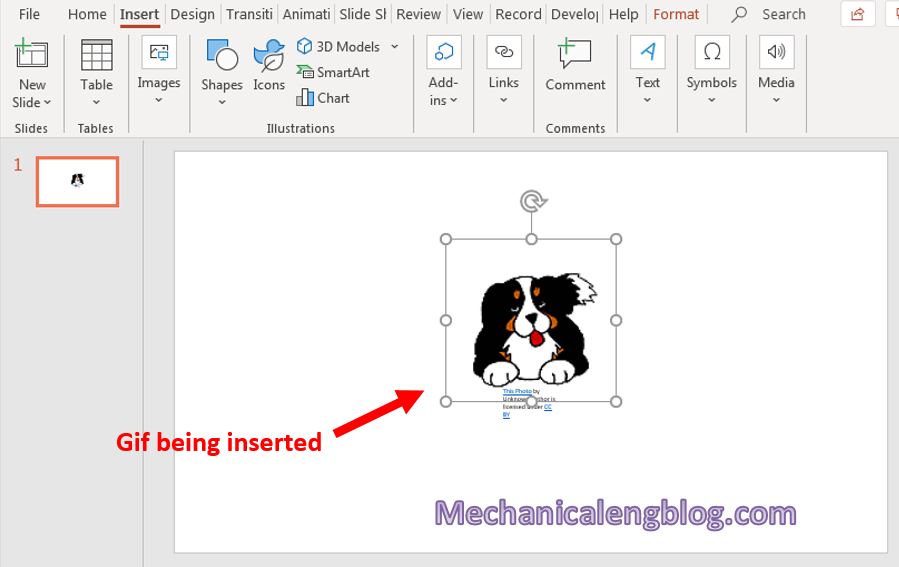
Step 4: Don’t see the moving picture? Don’t worry, it will only move when you start the slideshow. And to check if the gif’s moving or not, you do the following:
To see the animation of the gif, go to tab Slideshow. In here, click on From Beginning to see the gif’s movement from the beginning. Or you can also choose From Current Slide if the slide containing the gif is the currently selected file.
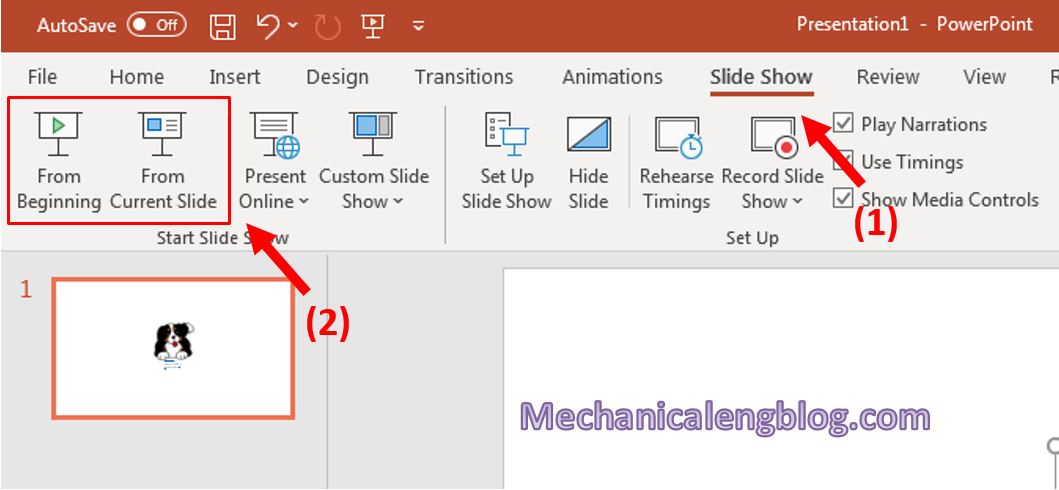
Here is my inserted gif.

How to convert video to gif online?
To make it more convenient to insert gifs into slides but you only have videos, I would like to introduce you to a website that converts videos into gifs. Please refer to the link below:
https://ezgif.com/video-to-gif
Select the video from the folder in your computer then click Upload Video.

After the video has been uploaded, customize the parameters to your liking or leave the default parameters, then click Convert to GIF.

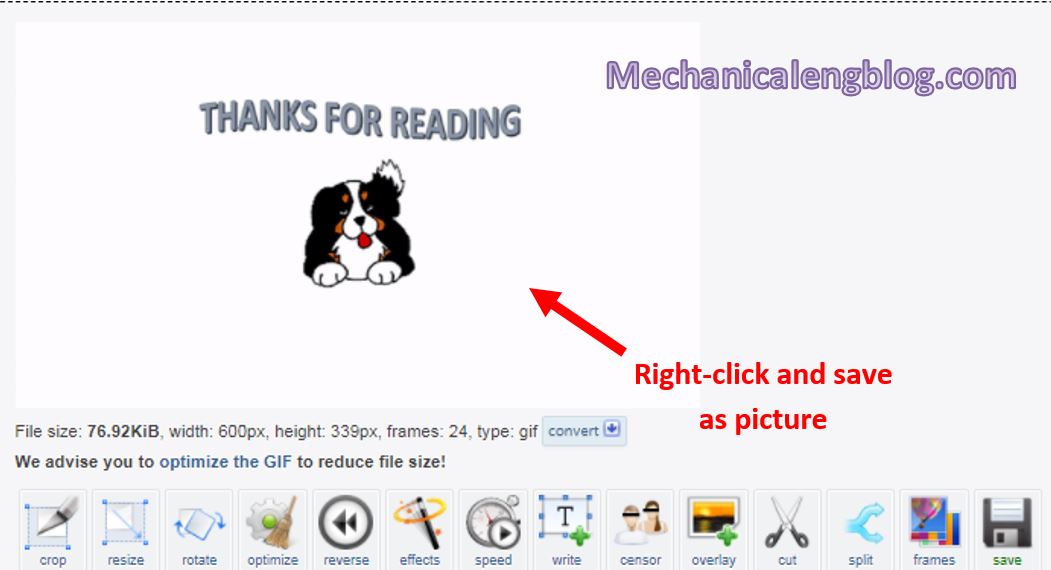
Right click on the resulting gif to save it. Below are other editing tools or optimizing the gif to reduce the size if you want. And it’s done.
CONCLUSION
So, gif is like a combination of picture and video and with just a few very simple steps, you can now insert gifs into PowerPoint. This article of mine would also like to stop here. There is still a lot of new knowledge I want to share and want to explore with you, at the next blog, so don’t forget to visit us again.
Thank you and best of luck.
-hhchi


Leave a Reply