• Skip to main content
  • Skip to secondary menu
  • Skip to primary sidebar

Mechanicaleng blog

siemens nx tutorial & injection molding technology

  • Plastic molding
  • Siemens nx
    • nx modeling
    • nx drafting
    • nx sketching
    • nx assembly
  • Mechanical basic
    • mechanical standard
    • Mechanism video
  • microsoft office
    • microsoft word
    • powerpoint
    • excel tips
  • About me
  • CONTACT ME
Home » microsoft office » excel tips » Create random number in excel

Create random number in excel

February 18, 2021 by mechanicaleng blog Leave a Comment

Have you need random data for test? I usually use random data for excel function test. You can create random number in excel very easily and simple.
In this tutorial, we will create random number in excel by Rand and Ranbetween command.

I. Create random number with rand() command.

Rand() command will give us random real number between 0 and 1. A new random real number is changed every time the worksheet is calculated.
Return value: Number between 0 and 1
Syntax: =RAND()
For this test, I will create 5 random numbers in excel.
+ 1st: Select cell you want to create random number.
+ 2nd: Typing =Rand()
+ 3rd: Hole left mouse and drag your mouse to the cell you want to create random number and press enter.

Create random number with rand command

II. Create random number by RANDBETWEEN command.

RANDBETWEEN command will give a number between two values.
Return value: An integer
Syntax: =RANDBETWEEN (bottom, top)
For this test, I will create 5 random numbers and between 20~30.
+ 1st : Select cell you want to create random number.
+ 2nd: Typing =Randbetween(20,30)
+ 3rd: Hole left mouse and drag your mouse to the cell you want to create random number and press enter.

Create random number with randbetween command

What can we do with randbetween command?

+ Random value from list or table.
To get a random value from a table or list in Excel, you can use the INDEX function with help from the RANDBETWEEN and ROWS functions.
Formula =INDEX(data,RANDBETWEEN(1,ROWS(data)),1)
+ Random value between two values.
Formula =Randbetween(lower,upper)

Create random number with randbetween command

+ Random date between two dates.
Formula =Randbetween(date1,date2)

Random date between two dates

+ Random text values
Formula =CHOOSE(RANDBETWEEN(1,4),”Value1″,”Value2″,”Value3″,”Value4”)
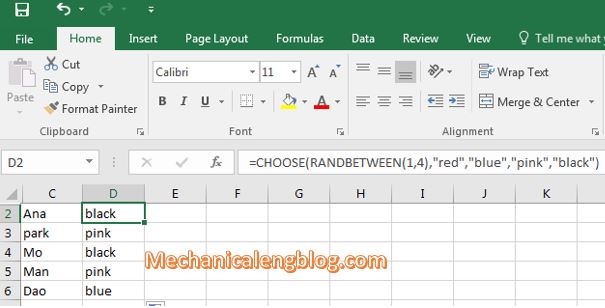
Random text values

+ Random number from fixed set of options.
Formula =CHOOSE(RANDBETWEEN(1,4),num1,num2,num3,num4)
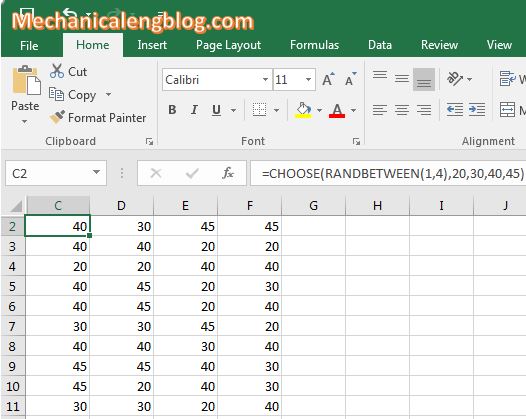
Random number from fixed set of options

Related posts:

Create border in excel by border tool2 ways to create border in excel Using CONCATENATE commandHow to add leading zeros in excel change cell background color automatically in excelchange cell background color in excel by equal formulas How to count blank cells in excelHow to count and color blank cells in excel

Filed Under: excel tips Tagged With: excel beginner, excel tutorial

Reader Interactions

Leave a Reply Cancel reply

Your email address will not be published. Required fields are marked *

Primary Sidebar

Recent Posts

  • 10 things to succeed in mechanical engineering
  • what is tapered roller bearings structure
  • What is a flange connection
  • What is a Stainless Steel Flexible Joint
  • Gearbox – What You Need To Know
  • Gearbox Lubrication | 2 types lubricant
  • stainless steel | 4 types and identify
  • Plastic milling – simple but not simple
  • what is spur gear | introduction
  • Mechanical engineering skills from training process

Copyright © 2026 · Magazine Pro on Genesis Framework · WordPress · Log in