• Skip to main content
  • Skip to secondary menu
  • Skip to primary sidebar

Mechanicaleng blog

siemens nx tutorial & injection molding technology

  • Plastic molding
  • Siemens nx
    • nx modeling
    • nx drafting
    • nx sketching
    • nx assembly
  • Mechanical basic
    • mechanical standard
    • Mechanism video
  • microsoft office
    • microsoft word
    • powerpoint
    • excel tips
  • About me
  • CONTACT ME
Home » microsoft office » microsoft word » create a business card in word office

create a business card in word office

July 17, 2019 by mechanicaleng blog Leave a Comment

This tutorial I will show how to create a business card by word office. Business card or name card is very important with a seller, manager, direct, etc… In your name has your main information as logo of company, your name, your title, company address, telephone number, email, website, etc…

You can create a name card by photoshop software, but I am going to guide by office word. You can create a basic name card with office word.

A. Standard business cards size.

The standard business card size is 3.5 by 2 inches. That said there is a plethora of card shapes and sizes out there from the micro-business card at just 1 by 3 inches, to a square business card which adds height.

B.  Create a business card in word office by the template.

1.  Open your word office, select file -> new. In the search box, type business cards to search the word template.
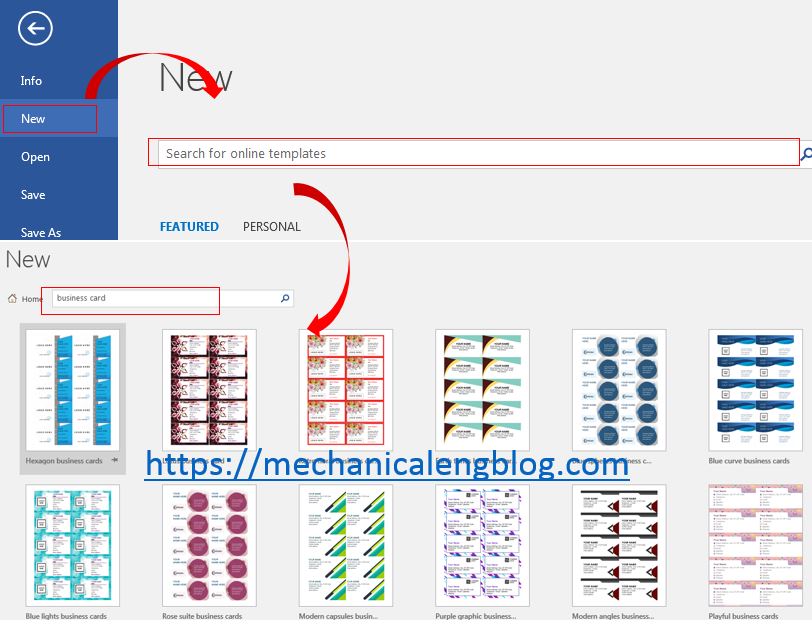
create a business cards in word office by template

2. Select template you want and click create button.

3. Typing your information in word template to create a business cards.

C. Create a business card in word by manual method.

If you do not want to use word template, you can create a name card by manual method.

1. Open your office word. Create a table by click insert -> table. For this example, I will select 2 x 6.

create a table in word

2. Select the table by click the icon at the left table, and right click and select table properties.

setup table properties

3. In the tab properties, we will set the text alignment, specify height, preferred width.
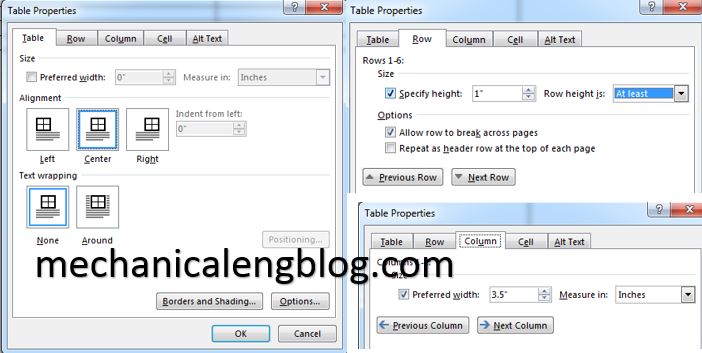
table properties information

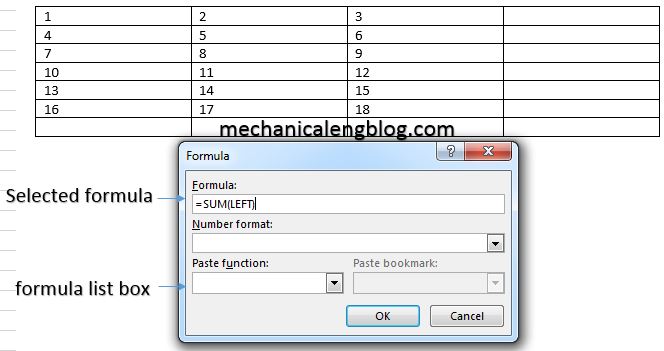
4. Typing your information in the table to create a name card.


Related posts:

word formula boxAdd and use word formula in table word 2016 Center text in cell word table by edit paragraph3 ways to center text in word table Convert word to PDF by microsoft wordconvert word to PDF file online for free add new undo word-options-registry editorHow to increase undo history times in word?

Filed Under: microsoft word Tagged With: Microsoft Word, word tips

Reader Interactions

Leave a Reply Cancel reply

Your email address will not be published. Required fields are marked *

Primary Sidebar

Recent Posts

  • 10 things to succeed in mechanical engineering
  • what is tapered roller bearings structure
  • What is a flange connection
  • What is a Stainless Steel Flexible Joint
  • Gearbox – What You Need To Know
  • Gearbox Lubrication | 2 types lubricant
  • stainless steel | 4 types and identify
  • Plastic milling – simple but not simple
  • what is spur gear | introduction
  • Mechanical engineering skills from training process

Copyright © 2026 · Magazine Pro on Genesis Framework · WordPress · Log in